
- Olivia
- November 17, 2026
How to Share Your Screen During Audio Call
You can no longer just send a message or make a voice call. There are times when you need to explain something over the phone, but it’s hard to explain, like when you need to point at some kind of document or explain some feature of an app or how to navigate your phone. This is where the screen sharing during an audio call can be helpful. You can share your screen while you’re talking and not switch to video or take numerous screenshots.
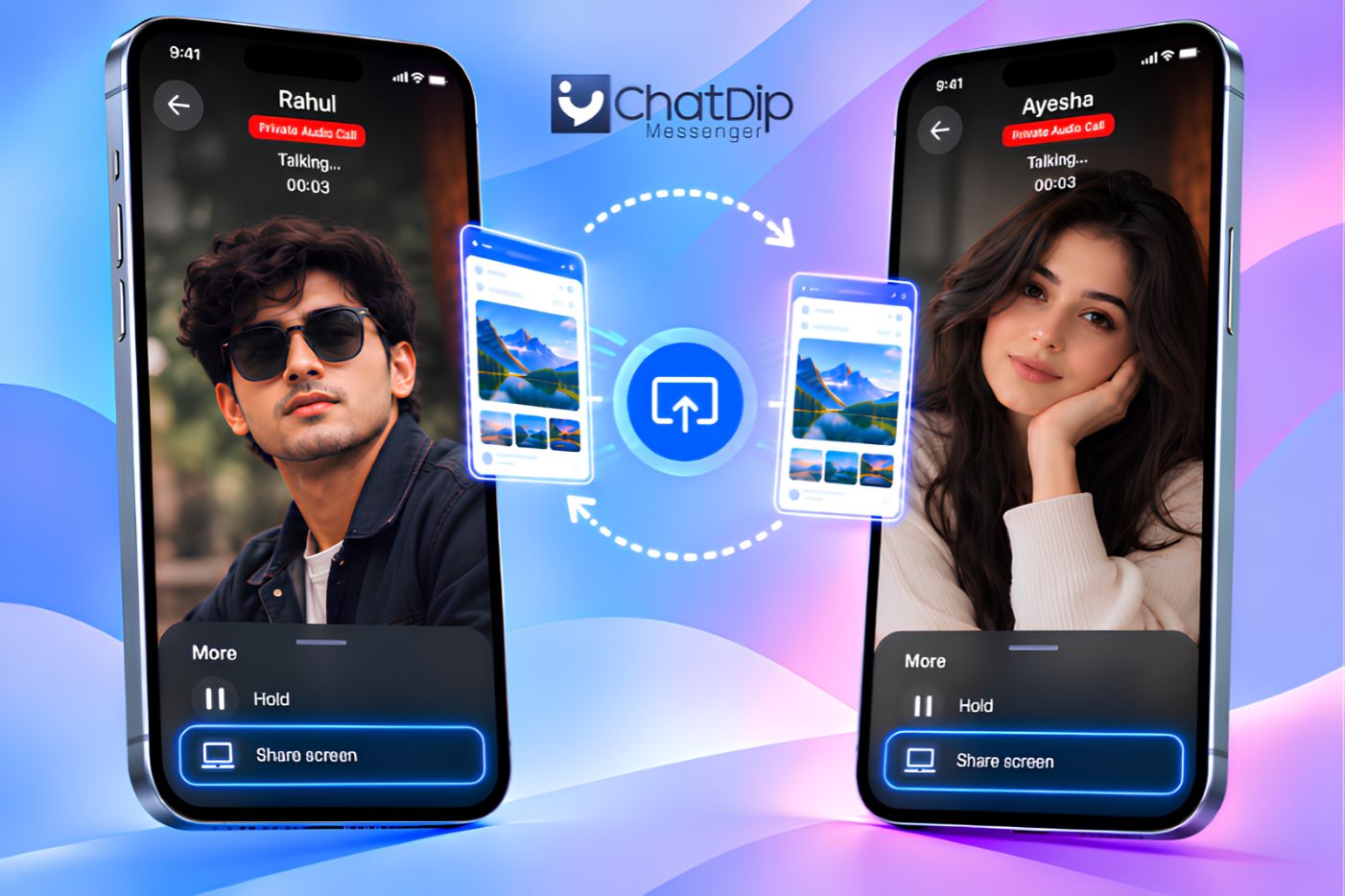
ChatDip Messenger allows people to share screens with friends on an audio call, even if they don’t turn their cameras on. This simplifies the communication process, it is easy to interact and useful for daily conversations.
In this guide, we will discuss how to share the screen during an audio call, the uses of screen sharing, why it is good, and how ChatDip simplifies it.
What is Screen Sharing During Audio Call?
Screen sharing during audio call is an audio call feature that lets users share the screen of the phones they’re talking to.
Instead of streaming a video of you, with your camera showing the background or your face, screen sharing shows what is displayed on your device.
For instance, when you are assisting someone to learn how to work with a mobile application. You can share your screen and show the process instead of explaining all of the steps verbally.
You will be able to see what the other person is doing as you do it and hear your directions.
How Does Screen Sharing Work?
To share screen during audio calls, the device records the content of the screen that has been selected and sends it to the called party.
The process is normally a three step process:
- Start an audio call with another person.
- Activate the screen-sharing option.
- Allow the necessary screen-sharing permissions.
When activated, the other person can now see the information that is shown on your screen.
While your camera is off you can give visual information and communicate by voice.
How to Share Your Screen During Audio Call Using ChatDip
Share your screen and still be connected with ChatDip Messenger.
Here are some simple instructions to help you get started.
Step 1: Open ChatDip Messenger
Start the ChatDip app for Android or iPhone.
Ensure that you have the latest version of the app to gain access to any new features and improvements.
Step 2: Start an Audio Call
Start a dialogue with the person to be contacted.
Tap the Audio call icon to initiate a voice call.
Wait for the other person to answer your call.
Step 3: Find the Screen Sharing Option
While audio is in session, find the Screen Share in the call controls.
Click on the “Share your screen” button.Click on “Start sharing your screen.”
Step 5: Switch on the front-facing camera.
Step 6: Start the video call.
Before screen sharing, a system permission request will appear on your device.
Carefully read the message, and then if you want, approve the request.
The permission enables your device to transmit the screen content in the session.
Step 5: Start Sharing Your Screen
When screen sharing starts, what you are showing and doing on your computer will appear on the other person’s computer.
While the audio conversation continues, you can switch between applications, show features, or describe information.
Step 6: Stop Screen Sharing
After you’re done, go back to the screen-sharing controls, and end the sharing.
You can have an audio conversation without meeting on screen!
Note: The screen-sharing controls and confirmation dialogs could differ based on device, OS, and version of ChatDip.
Benefits of Screen Sharing During Audio Call
Screen sharing is becoming an increasingly useful communication tool as it adds voice communications to real-time visual interactions.
Here are some important benefits.
1. No Need to Turn On Your Camera
Some of the best part about sharing screens while on audio call is that you don’t have to turn on your camera.
You can display information on your screen without being able to see your face or the environment.
This can be helpful when you’re not looking to be seen, but rather content shared.
2. Explain Things More Clearly
Sometimes it’s hard to convey information in words.
For instance, the location of a setting in an application might need multiple instructions to explain.
Screen sharing will enable you to show the process right there.
This will help to minimize confusion and increase the productivity of conversations.
3. Communicate Information Instantly
Screen sharing lets participants see what is on your screen.
You don’t have to take screenshots and send them separately, you can show them during your conversation.
This makes it easier to discuss documents, applications, images, and other content.
4. Save time in conversations
Simple conversations can be extended for no reason when they are repeated.
When sharing a screen during an audio call, it eliminates the need for lengthy verbal directions.
For instance, if a person has a problem with an application, they can see the steps in that application rather than each screen in the application.
5. Make Remote Assistance Easier
Screen sharing makes it easier to help friends, family or colleagues remotely.
Show how to set up a phone, explain functions in an application or walk someone through a procedure.
This is particularly helpful when giving routine technical support.
When Should You Use Screen Sharing During Audio Call?
The screen sharing can be used in any professional meeting. It can also enhance all-day personal conversations.
Helping Friends and Family
Suppose that someone in your family wants to learn how to use a new mobile app.
You don’t need to take several screen shots, you can screen share instead.
This helps in learning in an interactive manner and easier.
Explaining Mobile Applications
Screen sharing can be used to share with someone how to use a new application.
It is possible to demonstrate how to do the menu, how to look through settings, as well as how to use different functions.
Discussing Documents
In some cases, while talking to someone, you need to discuss a document.
Screen sharing enables to share the information and discuss it in the same call.
Please be mindful of sensitive information and materials.
Planning Activities Together
Screen sharing can also come in handy when planning a trip, discussing online purchases or comparing options.
Information can be displayed on your screen when you are discussing it.
Providing Technical Guidance
Screen sharing helps break down technical conversations.
For instance, you can show how to make a setting change, or how to find a feature on your phone.
Keep in mind, though, that screen sharing means that the other person can see your screen, but not control it.
Screen Sharing During Audio Call vs. Video Call
While both features enable to communicate in real-time, they have a different purpose.
| Feature | Screen Sharing During Audio Call | Video Call |
|---|---|---|
| Voice Communication | Yes | Yes |
| Camera Required | No | Usually used |
| Screen Content Sharing | Yes | Depends on the app |
| Face-to-Face Interaction | No | Yes, when cameras are enabled |
| Best For | Demonstrations and explanations | Visual conversations and meetings |
| Camera Privacy | Camera stays off | Camera can be enabled |
For some people the primary purpose of the video call is to share information on the screen, in which case screen sharing might be a better alternative to not having a video call.
Why Use ChatDip for Screen Sharing During Audio Call?
ChatDip Messenger is a single messaging and calling app.
It has a screen sharing feature that lets users share the information they see on their screens while talking on the audio call without turning on their cameras.
So here are a few reasons to check out ChatDip.
Convenient Voice Communication
In addition, users can also use voice calling in ChatDip to communicate while sharing information.
You can talk as you show something on your cell phone.
Screen Sharing Without Video
This is not a camera sharing feature; it’s just a device screen sharing feature.
This allows you to share content, without sacrificing the audio conversation.
Multiple Communication Features
In addition to screen sharing, ChatDip provides message, voice and video calls, scheduled messages, and real-time translation of chat.
It is useful for various communication requirements due to these features.
Everyday Convenience
ChatDip’s screen sharing function can help you present information to someone or you can show how to use this application to a friend.
Check out other features on the ChatDip Calling page.
Tips for Safe Screen Sharing During Audio Calls
While screen sharing is an easy and convenient way, it’s necessary to ensure that your personal information is not compromised.
Disable sensitive notifications. During a sharing session, incoming notifications might display on your screen. Before you begin, think about turning on Do Not Disturb.
Avoid displaying passwords. Avoid sharing your screen, especially when opening a password manager, bank account, or other sensitive applications.
Close unnecessary applications. Only keep opened applications that you will be using for demonstration.
Discuss with a trusted person. Before sharing personal information, be sure to know who is watching your screen.
When complete, stop sharing. Stop the screen sharing once it is done.
These precautions will help you have more control over the information you share.
Common Screen Sharing Problems and Solutions
Sometimes, screen sharing may not work as expected. A few common problems and potential solutions.
Screen Sharing Option Is Not Showing
If you don’t see the screen sharing option, make sure that your ChatDip application is current.
Also, ensure that you are using the feature during an on-going audio call.
Screen Sharing Does Not Start
You may need to grant screen broadcasting or screen recording permissions.
Check the permissions request, and verify that screen sharing is permitted.
The Other Person Cannot See Your Screen
Verify Internet connection and make sure screen sharing is running properly.
If the issue persists, discontinue sharing and start the session again.
Screen Sharing Is Slow
Real-time screen sharing may be disrupted by a poor or unstable Internet connection.
Consider using a different WiFi or mobile connection.
Screen Sharing Stops Unexpectedly
Background activities or screen broadcasting are limited in some devices.
Verify the device settings, update the device application and re-establish the call if needed.
Frequently Asked Questions
1. How to Share Your Screen on Android?
ChatDip Messenger will let you share the screen of your android phone in an audio call without showing your camera. Screen sharing enables you to share applications, documents, images, and more with real-time playout of your voice conversation.
On Android, to share your screen:
- Open ChatDip Messenger Application on Android.
- Click the contact you wish to call.
- To make an audio call, tap the Audio Call icon.
- After the call is connected, click on More (•••) on the call controls.
- Click on Share screen in the menu.
- Your Android device might request permission to take or share screenshots.
- Give the necessary privileges to start a screen share.
- The second player can now see what you are doing on your phone, and you can still talk.
To stop screen sharing:
- Return to your ChatDip call screen.
- Click on the “Stop sharing screen” option.
- Audio Call can go on without sharing screen.
Note:
- There is no need to allow camera to transmit screen.
- Informations visible: notifications may be shared with the recipient.
- A few applications limit screen recording or screen sharing.
- It is recommended that you have a stable Internet connection.
- Only share your screen with those you trust.
2. How to share your screen with iOS?
During an audio call, users of ChatDip Messenger can share their screens. You can share information, show applications and explain about features of the phones without making a video call.
To share your screen on iPhone:
- Launch ChatDip Messenger app on iPhone device.
- Go to your chats and choose a contact.
- Click on Audio Call.
- Bear in mind to wait for the other person to respond.
- Tap More (•••) on the call to display more calling features.
- Select Share screen.
- You might see a verification pop-up on your iPhone screen announcing it’s broadcasting iOS.
- Confirm the screen sharing request to start broadcasting.
- When the sharing starts, you’re able to view the information on the other person’s iPhone screen.
You can keep talking during your audio call and share your screen concurrently.
To end the screen sharing:
- Go back to the ChatDip call panel.
- Find the live screen sharing control.
- End the screen sharing.
- If necessary, go on with the audio talk.
Note:
- You don’t need to turn on your camera when you are sharing your screen on the audio call.
- While sharing, iOS might show a screen-broadcast indication.
- Messaging and important data could be displayed.
- Some applications might prevent the screen capture.
- Update ChatDip and iOS for the best compatibility.
- Don’t divulge private information during sharing.
How to Share Your Screen?
Screen sharing allows you to show what’s happening on your mobile device to another person in real time. You can share your screen during an audio call, even if your camera is off, with ChatDip Messenger.
This is helpful when you want to explain an application, share information, assist a friend or talk about something shown on your phone.
Share screen during audio call:
- Launch ChatDip Messenger app on Android or iOS device.
- Click on the contact you wish to send a message to.
- Start an Audio Call.
- After it is connected, click on the More (•••) in the calling controls.
- Select Share screen.
- Give any permissions that are necessary for screen sharing.
- Your screen will become visible to the other participant.
- Continue voice conversation while demonstrating information to share.
To end the screen sharing:
- Switch to ChatDip’s call controls.
- Click on stop screen sharing.
- Your screen-sharing session will end, while your audio call can continue.
Note:
- You can share your screen during a voice call with ChatDip, even if you don’t start a video call.
- The other person will be able to view the content on the shared screen.
- Screen sharing doesn’t mean the other person will have control of your device.
- Personal information, notifications and passwords might be visible if displayed.
- The quality of the screen sharing will vary based on internet connection and devices used.
- Stay up to date with ChatDip to take advantage of features and improvements.
- Only share screens with trusted individuals.
Using the screen sharing feature of the ChatDip Messenger app will facilitate communication, information sharing and keep everyone connected during audio calls, even if the camera is not turned on.
Final Thoughts
For audio calls, consider screen sharing to help make voice communication more interactive and useful.
You don’t need to use only spoken language to explain information; information can be displayed directly on the device you are using while you are talking.
Screen sharing is a great way to save time and aid in understanding when you’re working with a friend, explaining something to someone, or talking about a document.
During an audio call, share your screen with ChatDip Messenger without turning on your camera – everyday communication is so much easier.
Looking to add more interaction to your conversations?
Download ChatDip Messenger and try out screen sharing, voice calling and more!